
How to download Instagram Reels on PC with the Chrome extension
This is the simplest way on a Windows PC, a laptop or a Mac. You set it up once, then every Reel is one click.
- Install the extension. Click Add to Chrome. This opens the Chrome Web Store. Press "Add to Chrome" and confirm.
- Open Instagram in Chrome. Go to instagram.com and sign in if you are not already. The extension uses the session that is already open and never sees your password.
- Find the Reel. Open it from your feed, a profile, the Reels tab or a link someone sent you.
- Click Download. A Download button sits right beside the post. Click it once.
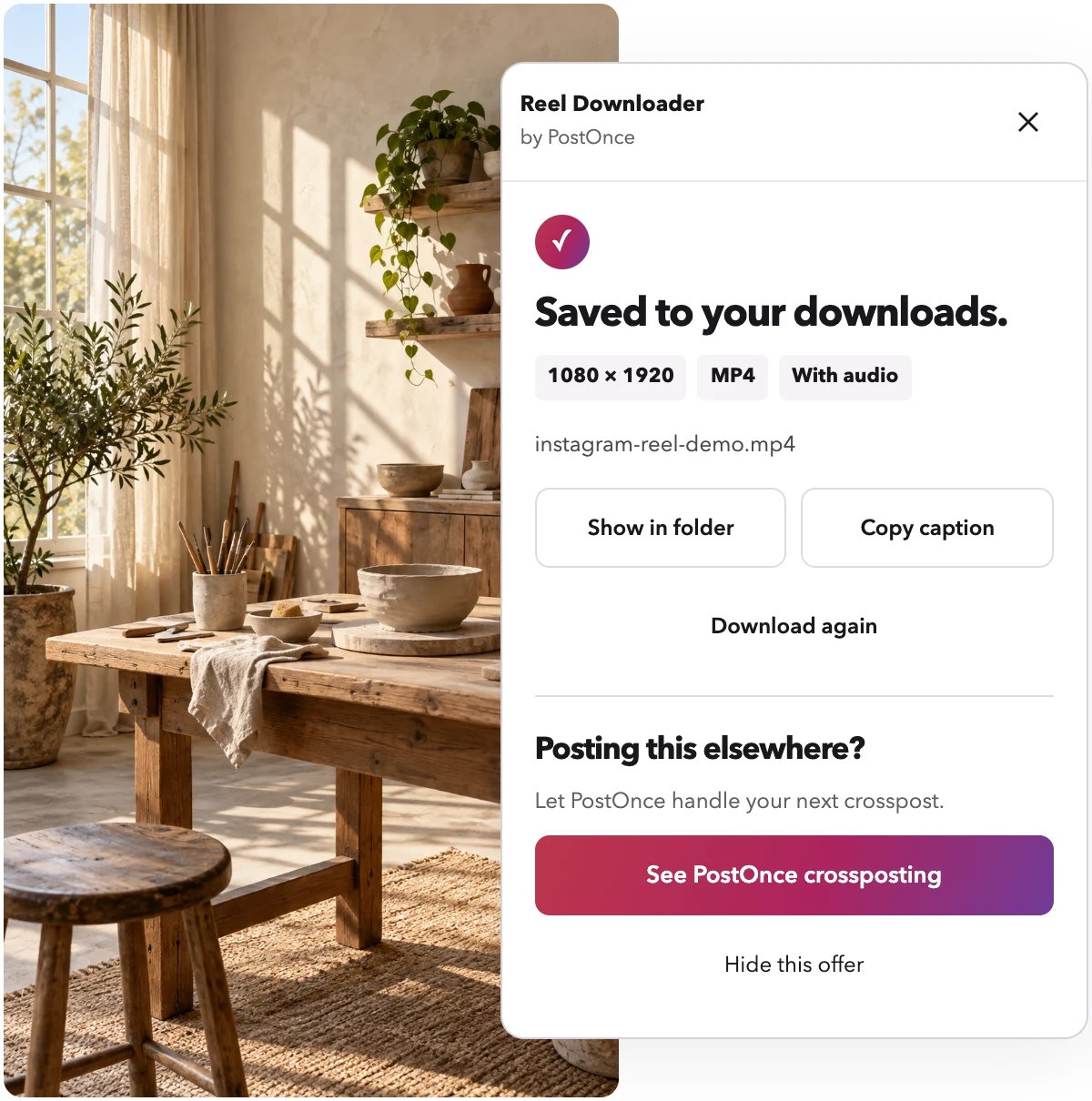
- Wait for the panel. A small panel shows the progress. When it is done it says "Saved to your downloads." with the exact resolution of the file.
- Open the file. Look in your browser's downloads folder. The Reel plays with sound.
You can repeat step 4 on as many Reels as you like. The extension has no daily limit.
What you get
- The best quality Instagram's website offers, usually 1080p
- Sound included
- No re-encoding, so the file is not compressed a second time
Instagram sometimes serves the picture and the sound separately. When it does, the extension combines them in your browser into one video file.
Download Instagram videos on PC without installing anything
If you cannot add extensions, for example on a work computer, use the paste-a-link web tool instead.
- Open the Reel on instagram.com.
- Copy the link from the address bar. It looks like instagram.com/reel/ followed by a short code.
- Go to the Reel Downloader home page.
- Paste the link into the box and press Download.
- Save the file.
The web tool only works with public posts and has a daily limit, because it runs on our servers. It also works on phones, so it is the option to use away from your computer.
Downloading Reels on a Mac
The steps are the same on a Mac. Install the extension in Chrome, open instagram.com, and click Download beside the Reel. Files go to your Downloads folder, the same as any other Chrome download.
If you use another Chromium browser that installs extensions from the Chrome Web Store, the extension works there too. Safari is not supported. On Safari, use the web tool on the home page.
Downloading Reels on a laptop
A laptop is a PC for this purpose. Use Chrome on Windows, macOS or another desktop system, and follow the extension steps above. Laptop or desktop makes no difference to quality.
Saving photos and carousels on PC
The same extension saves more than video. Click Download beside a photo post to save the image at up to 1080 px wide. Click it beside a carousel and every image is saved, numbered in post order.
For more detail, see the Instagram photo downloader and the Instagram downloader Chrome extension pages.
What you cannot download
- Instagram Stories
- Whole profiles, or many posts at once
- Private posts you cannot open yourself
- LIVE broadcasts
Troubleshooting on PC
I do not see a Download button
Check that you are on instagram.com in desktop Chrome, and that the extension is installed and turned on. Reload the page.
It says "Sign in needed"
Sign in to instagram.com in the same Chrome profile where you installed the extension. Then click Download again.
The Reel was removed or is private
The extension tells you clearly. If the post is gone, or the account is private and you cannot view it, there is nothing to download.
The download stopped halfway
If your connection drops, the panel shows a Retry button. Click it.
The web tool says I hit a limit
The web tool has a daily limit. Switch to the extension, which has none.
A note on privacy and reuse
The extension is free, needs no account and does no usage tracking. Downloads stay on your computer and nothing is uploaded.
Only download Reels you own or have permission to reuse.
Reel Downloader is made by PostOnce and is not affiliated with Instagram or Meta.